Storage & files
Browse your Mac's volumes and disks, check SMART disk health, mount network shares, share folders over SMB, and upload or download files from the browser.
The Storage page shows the Mac's volumes, disks, and shared folders, and opens a file browser on any volume. It has three tabs: Volumes, Shares, and Disks. Operators and admins can browse and download files; changing anything, from uploads to shares, needs an admin. Storage relies on the Full Disk Access permission that Udon asks for at setup.
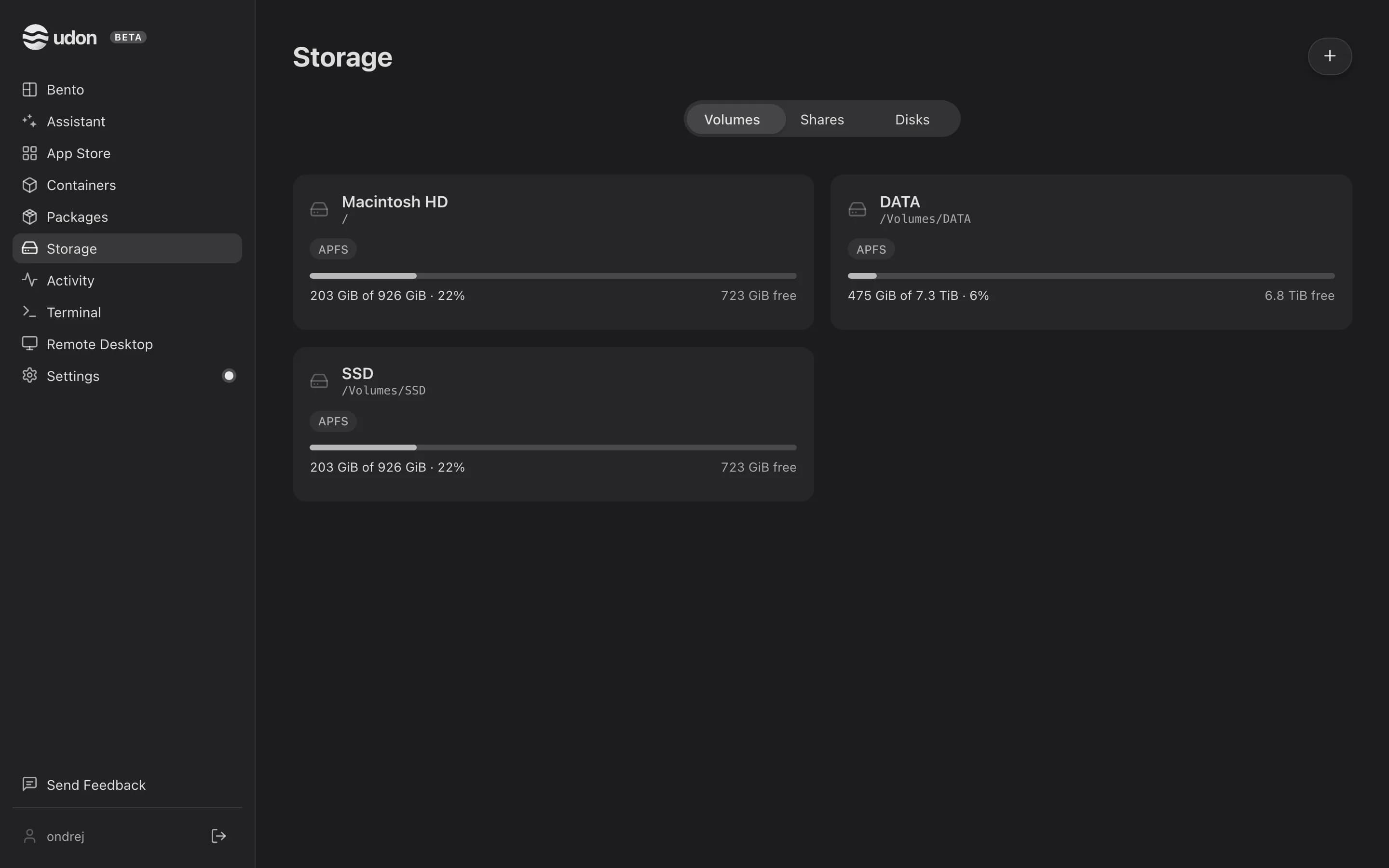
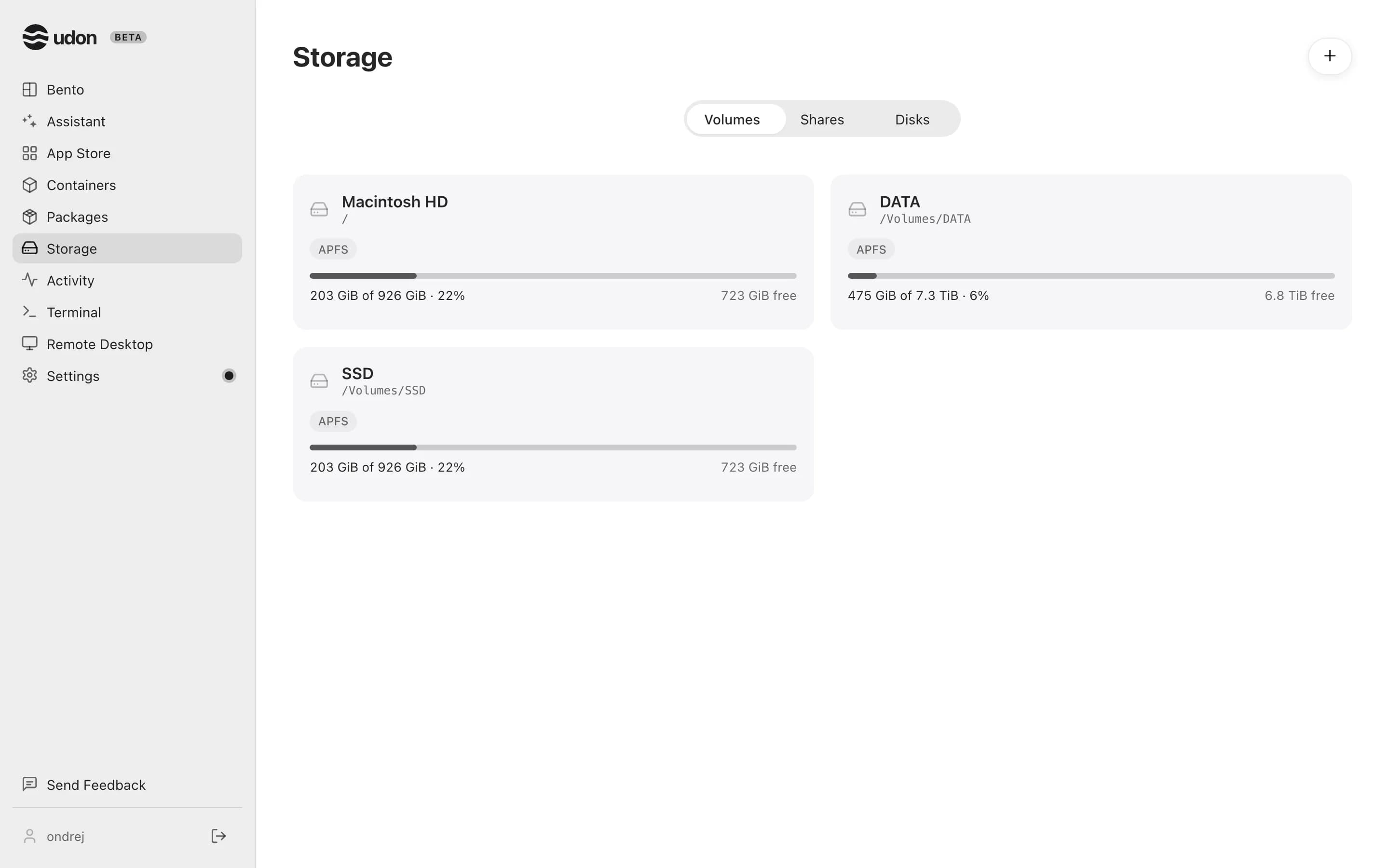
Volumes
Each volume, the startup disk plus any mounted drive, shows as a tile with its filesystem, its free space, and a usage bar that turns orange from 75% full and red from 90%. Click a tile to open it in the file browser. Mounted network shares show as tiles too, with their server; they can't be browsed from Storage.
Disks
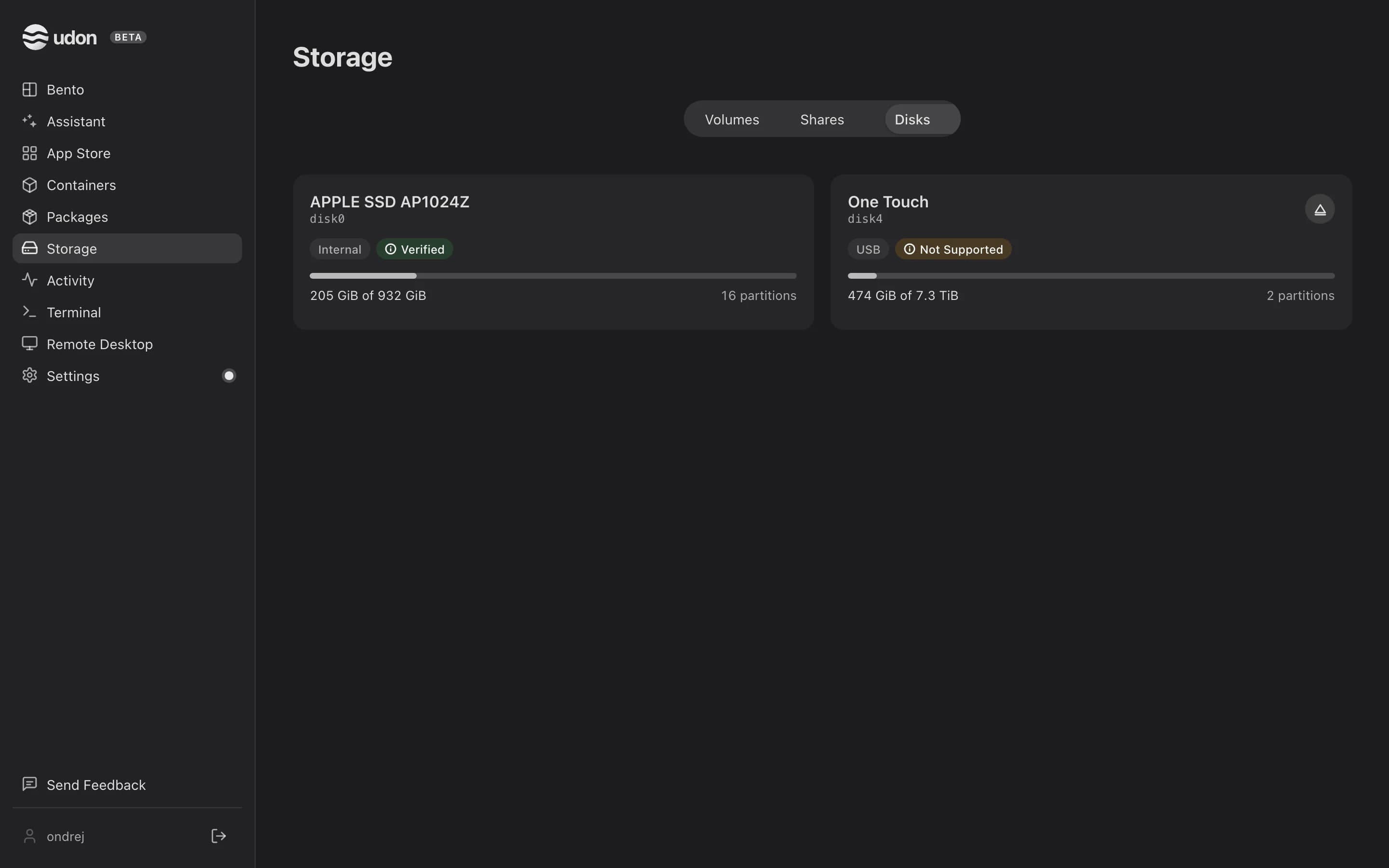
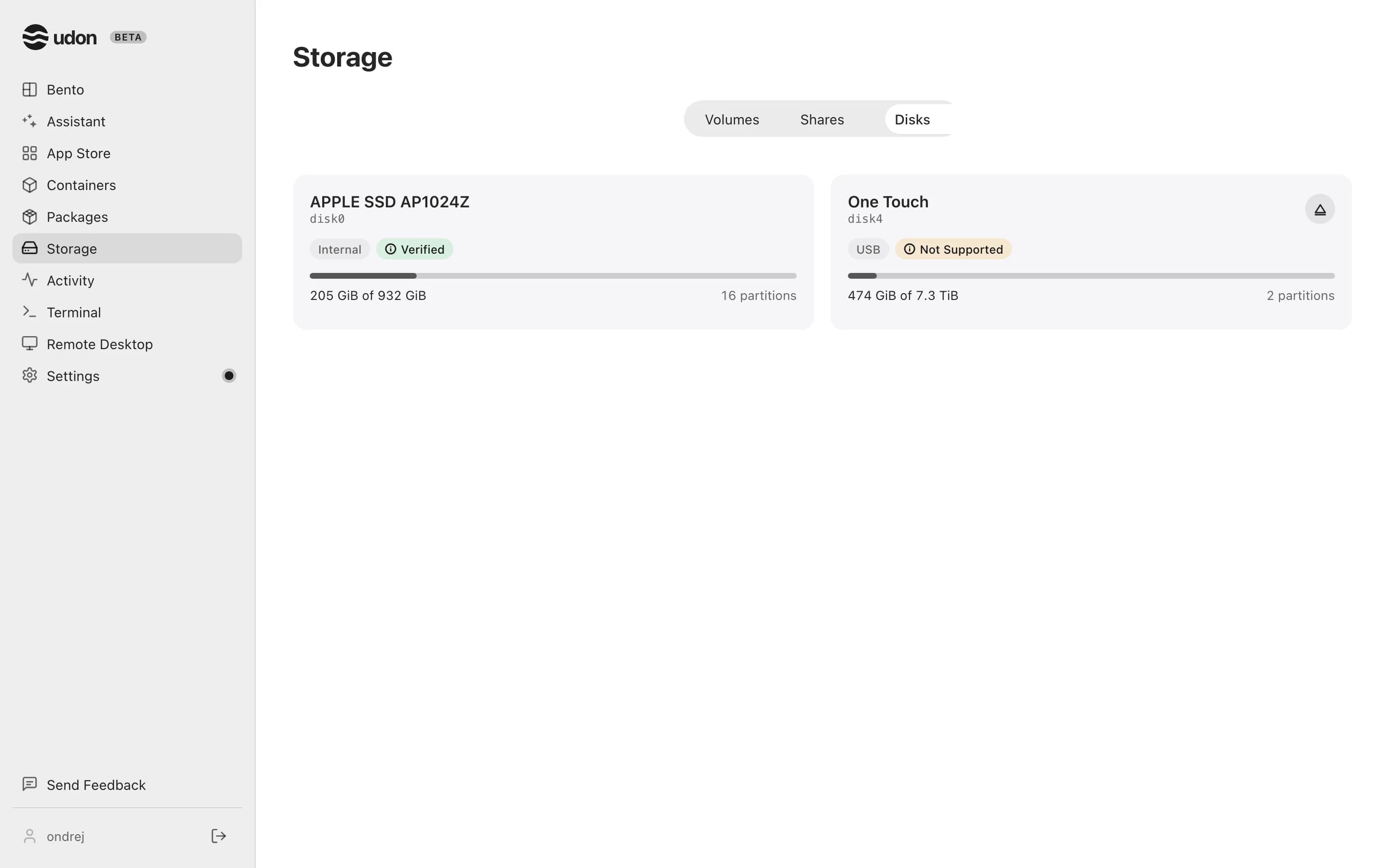
The Disks tab lists physical disks: one tile per disk, showing how it's attached (Internal, a bus like USB, or External), a usage bar summed from its partitions, and a partition count. APFS snapshots count once, with the volume they belong to. Click a disk to open its page: its connection, capacity, usage, and SMART status above a table of its partitions, each with a browse icon that opens it in the file browser.
- Eject: disks that can be ejected get an eject icon, which asks first since anything still writing to the disk would lose data. The startup disk never gets one.
- Disk health: click a disk's SMART chip for its status, model, size, and bus. With
smartctlinstalled you also get the attributes the drive reports, such as temperature, power-on time, power cycles, reallocated sectors, and estimated wear. Without it, an admin can click Install smartmontools in that dialog (needs Homebrew).
Network shares
Sharing a folder over SMB, and stopping a share, needs Admin Privileges; see Settings. Mounting a share from another machine doesn't.
Mount a network share
On Storage → Volumes, click the + in the page header (Mount a network volume).
Enter the server (hostname or IP) and the share name. Mount as, username, and password are optional. Use credentials accepted by that server, or leave them blank for a guest share. NFS isn't supported.
Click Mount. The share appears as a tile on Volumes, with an unmount icon to disconnect it.
Share a folder over SMB
Turn on File Sharing (SMB) in Settings → Sharing.
On Storage → Shares, click the + in the page header (Share a folder). Pick a folder from the tree or type its path; it must be inside your home folder or on a mounted volume other than the startup disk.
Adjust the share name if needed, turn on Read only or Allow guest access (no password) if you want them, and click Share. Guest access isn't allowed on a whole volume or your home folder.
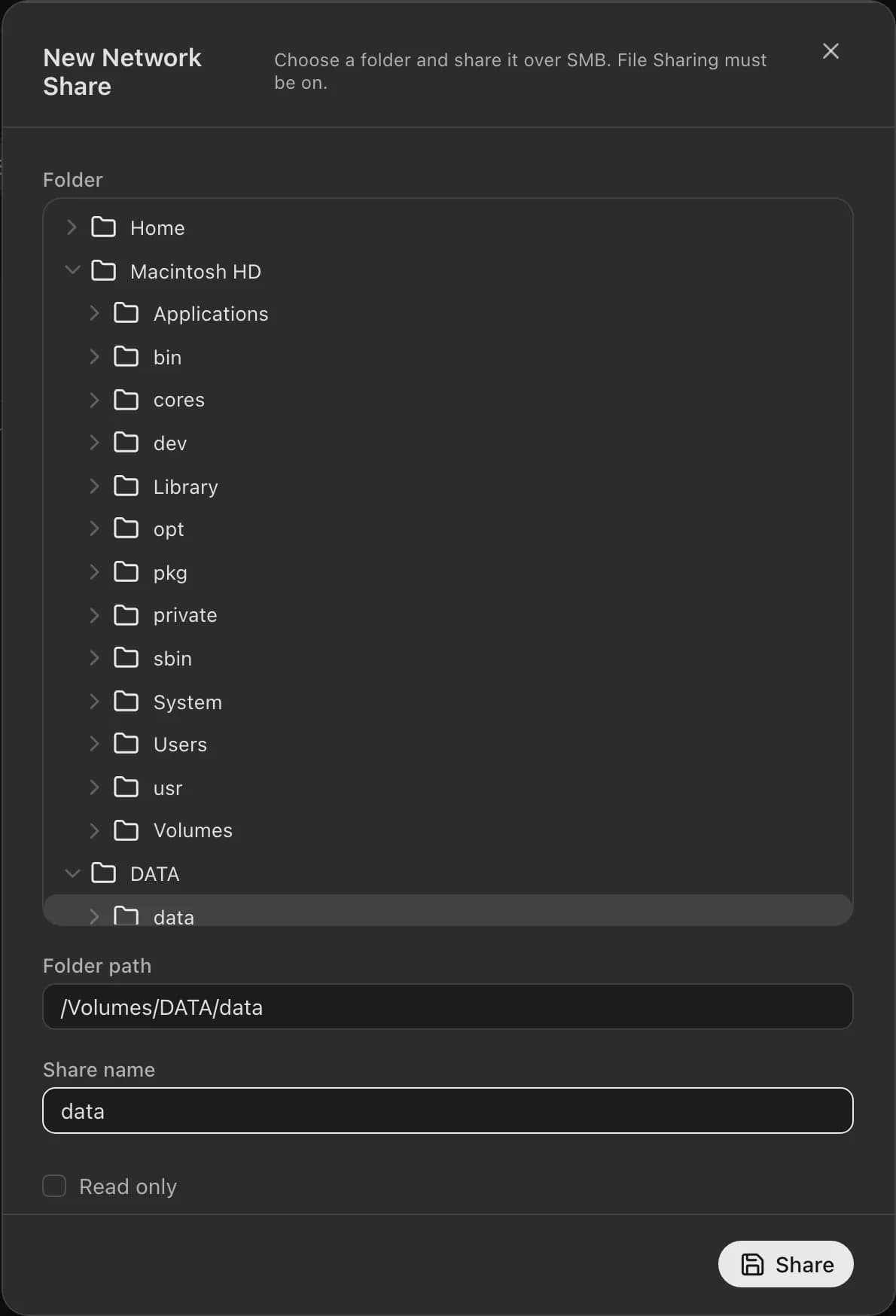
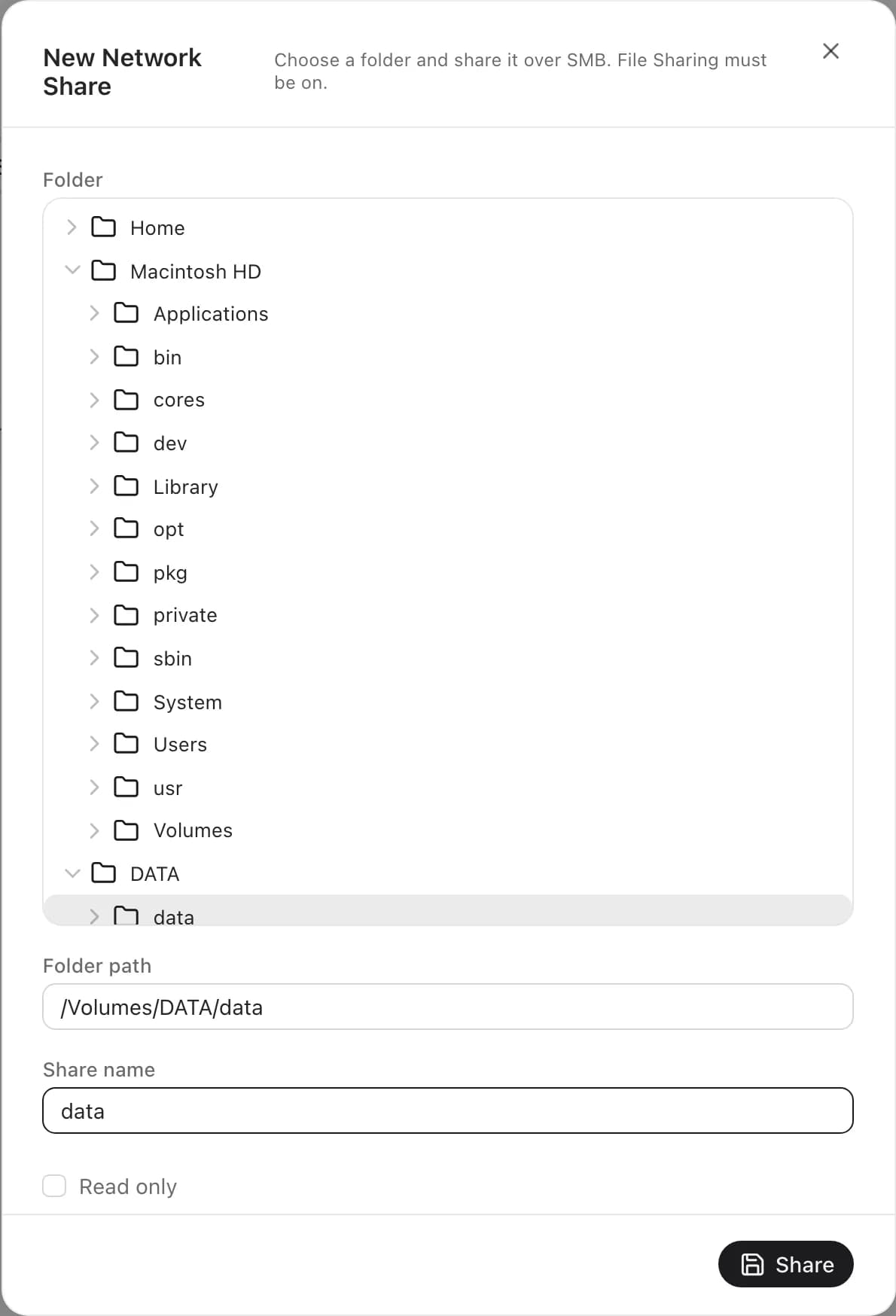
To stop sharing a folder, point at its row on the Shares tab and click the stop icon. Click a column heading to sort the shares; Udon keeps your sort until you close the browser tab.
File browser
The file browser opens from a volume tile or a disk's partition. Its toolbar holds a back button, the path, a list or grid view, a filter, and icons for Open Terminal Here, hidden files, refresh, new folder, and new file; a narrow window gathers those icons into a … menu. Admins can write to any volume that isn't read-only.
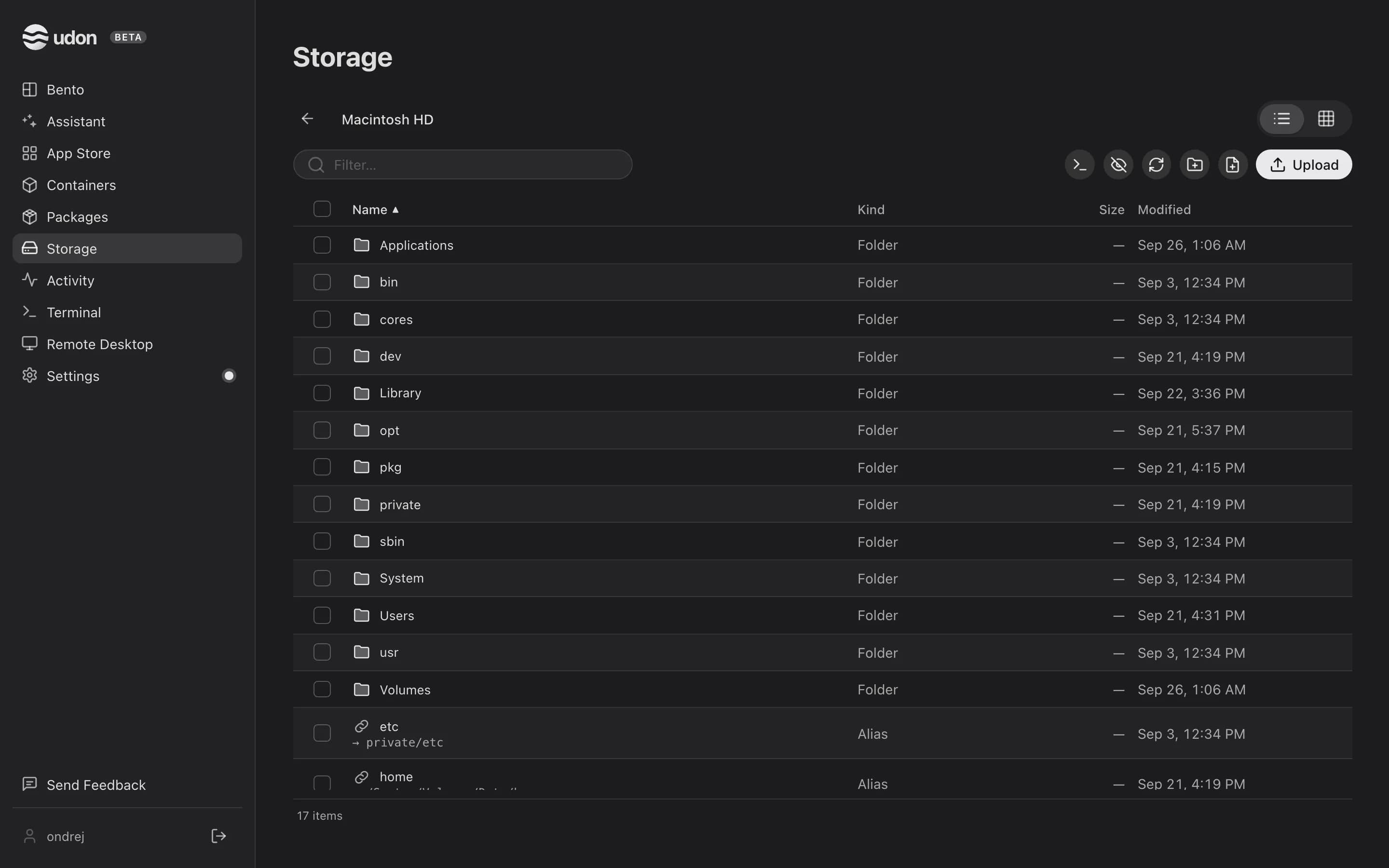
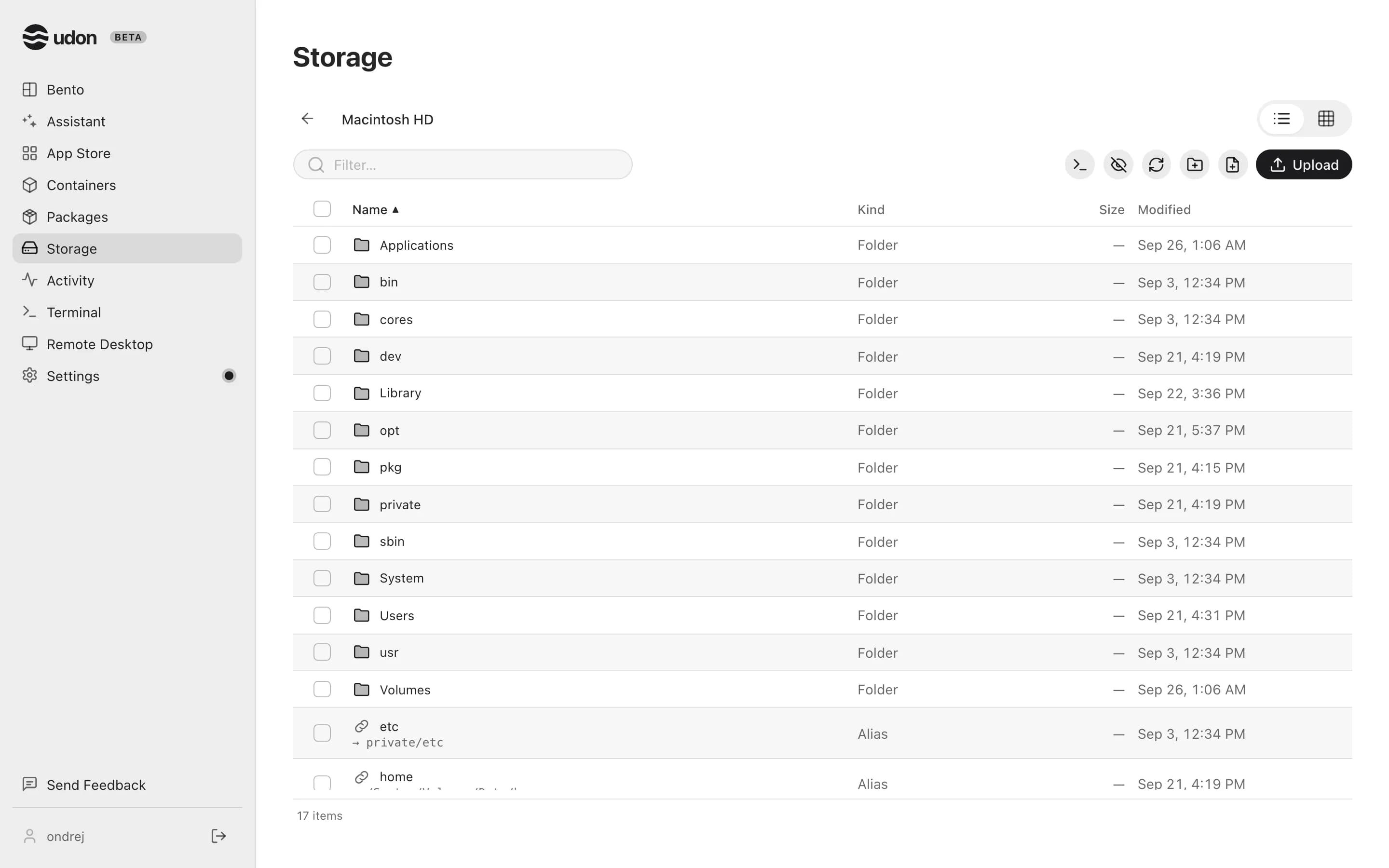
- Upload with the toolbar's Upload button, or drag files in from your computer.
- Download a file from its row, its preview, or its right-click menu.
- Select files with their checkboxes; the selection bar's icons cut, copy, delete, or clear the selection. Paste puts them in the current folder, and Paste into on a folder's right-click menu puts them in that folder.
- Preview images, video, audio, PDFs, and text (the first 1 MB), and use the right-click menu to rename a file or Get Info.
The keyboard works too: Cmd+A, Cmd+C, Cmd+X, Cmd+V, Delete, Space to preview, F2 to rename, and Cmd+Up for the parent folder. A folder with more than 10,000 items shows the first 10,000.
On a phone, files are full-width rows showing size and date (or a link's target); tap one to open it. To select, press and hold a row and choose Select, then tap others to add them.
Packages
Browse, upgrade, and remove the Homebrew formulae and casks installed on your Mac from the browser, with a live terminal for every action.
Network & remote access
Set the Mac's IP address and DNS, connect Tailscale, serve the dashboard with a trusted certificate, and reach your containers remotely by their own IPs.